Test video preferences in ComfyUI with Minds
Connect native VIDEO candidates to one Minds node, choose the Audiences and viewing context, review the exact question, and inspect audience-specific preferences before passing selected original videos downstream.
Use Minds · Audience Preferences to compare finished clips in the same graph that generates or edits them. Connect the native videos, choose existing Minds Audiences and ask one clear preference question. After draft review and execution, the node shows audience-specific results and can send the selected original videos to a Save Video or further processing node.
This workflow accepts video as media. You do not have to replace every clip with a written description. When audio is part of the native VIDEO object, it travels with the uploaded MP4 and remains part of the original object available downstream. The installation guide covers the custom-node pack and server-side authentication before you begin.
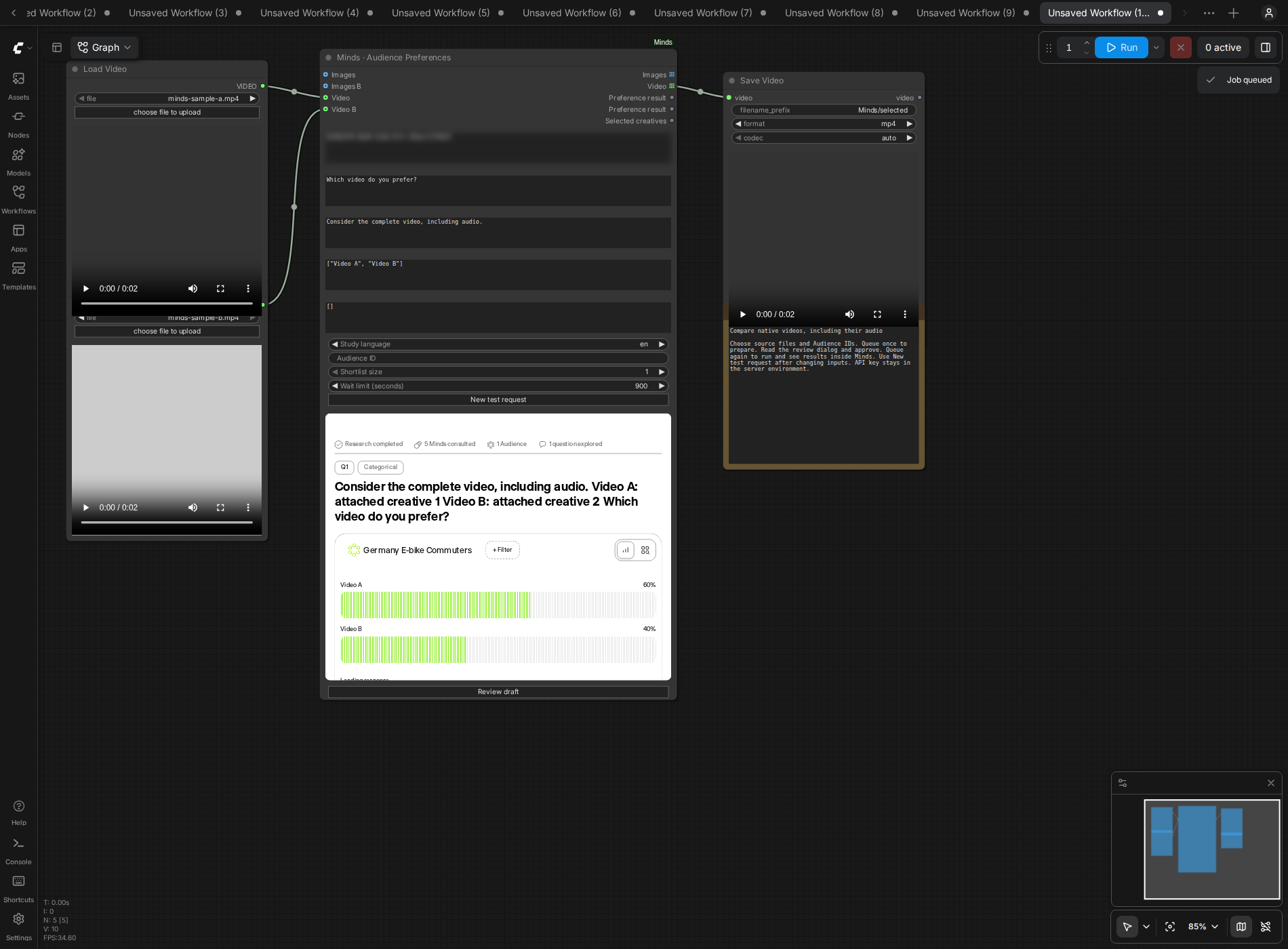
The screenshot comes from a real integration test with short fixtures. Three of five QA Minds selected Video A, giving a 60%/40% distribution. It proves that this tested path ran and returned the selected original clip; it does not establish a campaign effect or representative preference estimate.
Decide what the video question needs to answer
A useful comparison starts with the decision. You may need to choose an opening, compare two complete edits, or decide which treatment to develop further. These are different questions. A clip preferred for its explanation of a product may not be the clip preferred for its entertainment value.
Describe the setting the Audience should use: a product introduction on a website, an in-feed creative, a tutorial, or another concrete use. Specify whether sound is available. If the material contains narration but the decision concerns silent viewing, create the silent-viewing candidates or clearly state that condition. Do not assume a model can infer which playback conditions you intend from a filename.
Keep the question focused on one criterion. For example:
After viewing both clips with sound, which video would you prefer as an introduction to this product on its website?
That asks about preference for a stated use. It does not ask the Audience to supply measured conversion uplift. If you need to explore comprehension, objections or the reason a revision works, continue with a broader Study rather than treating the choice percentage as a complete explanation of every outcome.
Choose ready Audiences before connecting the clips
The node uses ready, existing Audiences accessible to the account behind MINDS_API_KEY. Supply their comma-separated IDs in audience_ids. The optional Minds · Find Audiences helper can list account-visible Audiences; it is useful when you have names but need the corresponding IDs.
An Audience is a reusable population of Minds, not a free-form demographic label that creates a population inside this node. Check the Audience guide for creation and suitability, and the Mind guide for the respondent foundation. Use the population relevant to the decision, with appropriate grounding and research inputs where available.
If you compare several Audiences, keep their results separate. A different preferred clip can be a useful segment finding. The node does not average those populations into one global winner. Set selection_audience_id to the included Audience whose preference should drive the downstream media output, or leave media routing blocked while you inspect the comparison.
Connect native VIDEO inputs
Load 07-native-video-selection.json from the official pack's example_workflows directory, or build the connections in your own graph. The example demonstrates two native video sources entering the same preference node and a selected-video output continuing to native saving.
The preference node exposes videos and videos_b for native ComfyUI VIDEO objects or lists. Use these ports when your generation or loading workflow already produces VIDEO. A path string, a set of isolated images or a custom third-party video type is not automatically a native VIDEO object. Use the appropriate conversion in your installed ComfyUI workflow before connecting it.
The node collects candidates into one research question. It does not intentionally create a new Study for every frame in a clip or every item in a connected list. If you have two VIDEO inputs, they become two labelled alternatives in the comparison.
Prepare labels_json in input order:
["Video A", "Video B"]
Use labels that distinguish the actual executions. For an opening comparison, Direct opening and Story opening may be more useful than technical export names. Keep labels neutral: an alternative named The clearly better edit introduces an unnecessary cue into the question.
Understand candidate order and mixed inputs
The collection order is native images on images, then images_b, then native videos on videos, then videos_b. Label all of those native candidates in that order. Each image in a batch counts as a separate candidate; a VIDEO object counts as one candidate. Records from assets_json follow and carry their own labels.
For a video-only graph, this is straightforward. With two videos connected to the two VIDEO ports, the first label belongs to the first port's video and the second label to the second port's video. For mixed image/video research, check the complete reviewed alternative list before approval.
Mixed inputs can be useful when the decision truly spans formats, such as a static execution versus a video execution for the same placement. Explain that context and judge what the comparison can establish. A general preference between formats does not isolate the effect of an edit, soundtrack or first frame. See the creative workflow article for narrower comparisons that are easier to act on.
Keep native uploads within the current limits
The adapter encodes native video to MP4 for upload. Each locally uploaded creative must be non-empty and no larger than 50 MB after encoding. Across the full question, supply between 2 and 20 distinct candidates. These are adapter limits, not a promise that every duration, codec or combination below the byte limit has been tested.
The combined authored question, context, labels and concept text must fit 2,000 characters. For native video, the research material is the attached clip, so the context can stay concise. Explain the viewing conditions and intended decision rather than writing a lengthy synopsis that may bias the comparison.
The node cannot create audio that is absent from the input. Preview your source clips to confirm they contain the intended soundtrack and that it is audible. When your pipeline produces separate frames and audio, combine them into the appropriate native video object before preference testing.
If an asset exceeds the local upload limit, prepare a smaller test file that still preserves the details the question depends on. Changing the asset creates a different research input, so start a new test and review it again. Do not resume an existing reviewed request with a substituted clip.
Review the saved draft before research starts
Set the question, context, labels, Audience IDs and study_locale, then queue the graph. The node prepares a saved draft and opens the review dialog. Downstream outputs remain blocked until that draft has been approved and research has completed.
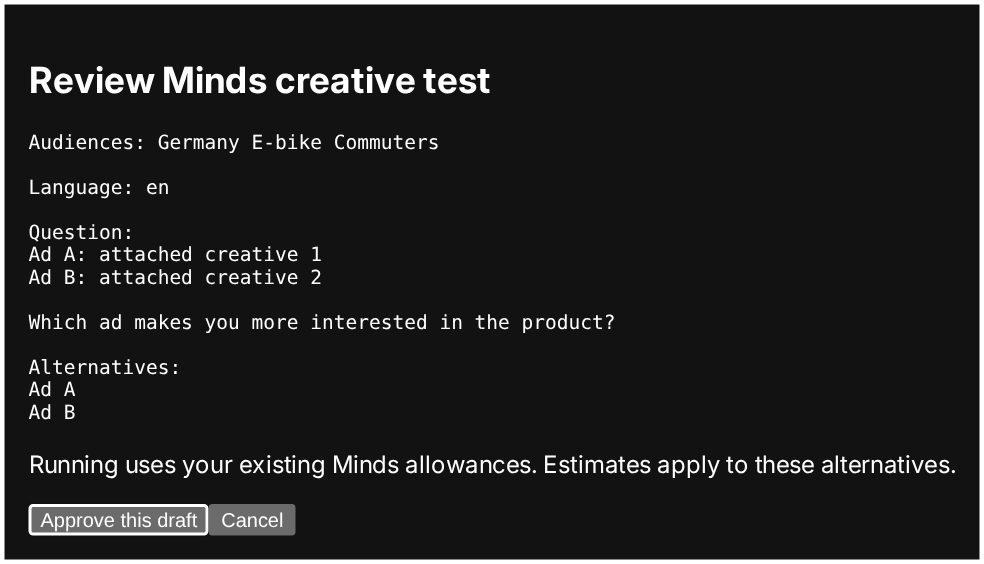
The review screenshot illustrates the shared approval interface using the image test. The same interface is used for the video workflow. Inspect the actual video draft's Audience, language, candidate order and question before choosing Approve. Queue again to execute the approved draft. Approval does not remove the need for the second queue action.
The adapter checks that the saved question and response options match the request. If the draft changes after approval, it requires another review. This keeps the result associated with the media and question you intended to test rather than with a silently revised instrument.
Read the video result inside the node
On completion, the embedded Minds response widget can show the question, Audience breakdown, categorical distribution, findings and available individual answers. Use the distribution together with those details. A share tells you how the supplied alternatives were selected in this synthetic research run; it is not a direct measure of attention, completion rate or purchase behavior.
In the integration-test capture, Video A received 3 selections and Video B received 2 from the five-Mind QA Audience. The 60%/40% split has very limited resolution. One changed selection would materially change the apparent result. Its purpose here is to demonstrate the product behavior and show where results appear.
For your own work, ask whether the underlying population, viewing condition and stimulus match the intended use. If the result is close, preserve both candidates for the next iteration or use the broader Minds workflow to investigate. The results reference explains ranks, ties and the absence of an invented confidence interval.
Pass the selected original videos downstream
Connect selected_videos to a compatible native Save Video or processing input. The adapter returns original VIDEO objects from the candidate set, including their audio. It does not assemble a new clip from preview thumbnails or substitute a generated summary for the video.
Set top_k to the number of candidates you want to shortlist. Ties at the cutoff are included, so the output can contain more clips than top_k. A tied result should remain visible in your graph logic; do not assume the adapter will arbitrarily break the tie to satisfy a single-file expectation.
With several Audiences, choose selection_audience_id before expecting native media selection. With hosted URLs or text concepts, inspect selected_creatives; those inputs have no connected native VIDEO to return. If an image wins a mixed comparison, the native video output has no selected video and remains blocked while the image and result outputs can be usable.
Use hosted video files when appropriate
The assets_json field supports labelled HTTPS media records. A record has exactly label, url and mimeType. Supply a direct file the research service can retrieve, rather than a page that requires a separate browser login. The MIME type should match the actual media.
Hosted records are useful when the clip already exists outside the graph. They change the downstream behavior: a selected record is a reference, not a native ComfyUI video object. If your next step needs the actual VIDEO, load the authorized material through your own normal ComfyUI media pipeline and connect it natively before testing.
Avoid changing the content behind a URL while a test is in progress. A stable reference is necessary for understanding what was compared. Do not put embedded usernames or passwords in the URL; the manifest rejects those forms. For the precise manifest structure and other input forms, return to the setup guide.
Compare scripts and story concepts as concepts
Use assets_json with labelled text when you want feedback before rendering:
[
  {"label": "Direct demonstration", "text": "Open with the product in use, show the main task, then end with the product name."},
  {"label": "Customer story", "text": "Open with a customer's problem, show the product helping, then end with the same product name."}
]
State in the question that these are proposed concepts. Keep the description of each alternative comparable in detail and keep the full assembled question within the character limit. The concept record's separate text limit does not override that question limit.
A preferred script can guide what to render next. Once you have the actual executions, test those videos as a new request. The rendered visual treatment, timing, voice and soundtrack introduce evidence that the initial written concepts did not contain.
Retry an interrupted video test
If polling times out while the Study is still running, queue the same workflow with the same request identity and inputs. The adapter resumes the saved run rather than intentionally starting new research. The default polling timeout is 900 seconds; a timeout message is not proof that the server-side run was canceled.
Use New test when clips, labels, question, context, Audiences or study language change, and review the new draft. Generated media can change even when a prompt looks the same, so compare the actual connected outputs. Open the saved Study for a terminal failure or incomplete-media evidence instead of accepting a fabricated winner.
Continue the research beyond the graph
Minds is the end-to-end platform for commercial synthetic research, connecting Minds, Audiences and Studies across qualitative and quantitative work. PRISM supplies the underlying reasoning, inference and source-modeling foundation. The wider platform supports methods including MaxDiff, alongside other interaction types described in the feature guide.
This node is a focused entry point for one categorical creative-preference question. Continue in Minds when you need broader investigation, comparison or export. The integration overview, ChatGPT guide, Claude guide and MCP overview describe other ways to work with the same research platform. For a first setup, use getting started; for a blocked graph or an ambiguous result, use the ComfyUI results and troubleshooting guide.
Frequently asked questions
Does Minds accept actual video or only a description?
The ComfyUI node accepts native VIDEO objects and supported hosted video records. Native video is encoded as MP4 for upload, with its audio. Text concepts are a separate input form and should be described as concepts in the research question.
Is audio retained in the selected video?
The selected_videos output returns the original connected VIDEO objects. Audio present in those objects is preserved; downstream processing and saving must also retain it. The native-video end-to-end test included audio.
What videos were tested end to end?
Two short, two-second video fixtures with audio were compared with a five-Mind QA Audience, rendered in the response widget and saved through ComfyUI's native video output. This is integration evidence, not a long-video benchmark or validation of commercial research accuracy.
Can I compare video scripts before rendering them?
Yes. Provide labelled text concepts in assets_json and ask explicitly about proposed concepts or scripts. The result concerns that authored material, not an unseen final edit, performance, soundtrack or visual execution.
Why is there no video output after a completed result?
Check whether a native VIDEO was connected and selected. Hosted media and text concepts cannot create a native video object. With several Audiences, also choose a selection_audience_id before routing media downstream.
Does a preferred video have a predicted conversion rate?
No. The node returns synthetic preference among the exact alternatives for each selected Audience. It does not measure campaign conversions, watch time, actual attention or representative human market shares.