Minds in Canva: creative review development guide
Set up the private Canva app, approve a PDF, review and run a saved research plan in Minds, then return and insert its completed findings. Includes native screenshots and release gates.
Minds Review brings Canva artwork into audience research in Minds. Minds is the end-to-end platform for commercial synthetic research, connecting qualitative and quantitative work across Audiences and Studies. The development package supports material selection, saved research plans and completed findings tied to the selected draft. It is a private preview, not a public Canva marketplace release.
Current status and evidence
Status checked on 2026-10-01. Canva accepted the uploaded JavaScript bundle and English message catalog, and the panel rendered in its actual editor. Native tests passed Minds OAuth, Study loading, PDF export and cancellation, explicit consent, durable source import, draft creation, retry deduplication and exact-draft navigation. The latest bundle also reconnects after an expired session and clears the previous selection and consent.
Open the exact saved draft in Minds to review its material, questions, Audience and usage before explicitly confirming research. Return only findings from that draft’s completed run. Provider registration and public marketplace approval remain separate gates.
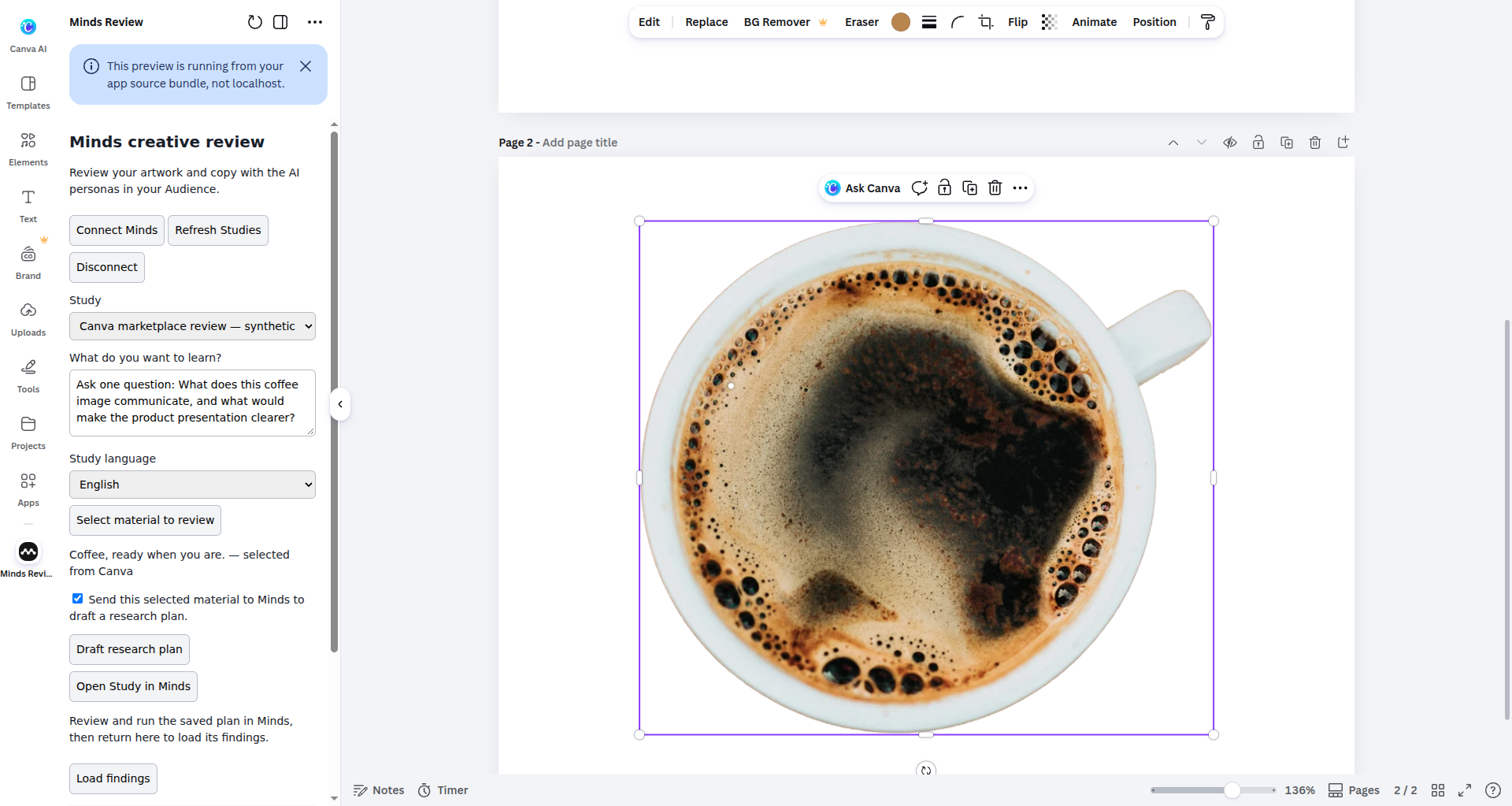
This native host capture shows approved source material and the saved-draft workflow in an owned synthetic QA document. Material-transfer consent and research execution confirmation are separate steps.
Requirements and permissions
You need a Minds account, an existing Study with an Audience, private preview access and permission to export the Canva design. The app does not create an Audience or select one automatically. Check the Study's workspace and research population in Minds first.
The package uses the Design Editor intent, design export, host content permissions, content writing for findings text, and external navigation for Minds authorization. The gateway permits the exact registered Canva app origin. Canva sign-in and Minds authorization are separate. Never enter a Minds password or API key into design text or a research request.
Open the uploaded private preview
The app owner opens Minds Review in Canva's Developer Portal, uploads the built JavaScript and message catalog, and saves them. In Preview options, choose the uploaded JavaScript bundle. The default localhost development URL is a different mode and needs a local development server.
Open a private QA design and verify the Minds creative review title and development warning. Access must be provided by the app owner; there is no public install link yet. The bundle uses Canva's internationalization adapter. Accepting the English catalog does not establish that every translated-language preview has passed.
Connect and select a Study
Select Connect Minds, finish native browser sign-in and review the authorization screen. Approve the intended connection, return to Canva and select Refresh Studies. Choose an existing Study with the Audience you intend to research.
The development panel loads the first 100 Studies. If your Study is absent, verify the Minds account, workspace and list bound. Browser sign-in alone does not complete the panel workflow: refresh the Study list after consent. Cancellation must not create a research draft. Reconnect through the native flow when the session expires.
Select artwork and approve transfer
Select Select material to review. Canva opens its export dialog; choose the relevant pages and complete the standard PDF export. PDF preserves a multi-page design as one readable document. The adapter does not treat a multi-page PNG ZIP as an image.
Inspect the selected material label before ticking consent. Cancelling the export must not create a draft or replace an existing selection. Selecting new material clears consent. Exclude confidential or unrelated pages when they are unnecessary, and approve only material you may send to Minds.
Exporting and transferring are separate. The panel requires consent and a research request before drafting. The canonical Minds source importer copies the approved readable PDF into owned storage while preparing the draft. A temporary vendor export link is an input to import, not a permanent storage guarantee.
Draft and inspect research
Write a specific request, such as: “Which parts of this campaign are clear to the selected Audience, which claims need explanation, and what would make the next step easier to understand?” Choose the Study language and select Draft research plan.
Inspect the returned objective, questions, language and source. Repeating unchanged inputs in the current panel reuses an idempotency identifier; changing the Study, request or material creates a new one. The native retry test returned the same draft ID.
Open the exact saved draft in Minds to review its material, questions, Audience and usage before explicitly confirming research. Return only findings from that draft’s completed run. Provider registration and public marketplace approval remain separate gates.
Return completed findings to Canva
Keep the original panel open, complete the saved plan in Minds and return to Load findings. Review the findings from that exact completed run, then select Add findings to design. This inserts a native Canva text element into the current design after an explicit click; it does not silently rewrite the source artwork.
Production acceptance on 2026-10-01 completed the entire native workflow with an owned synthetic headline design: PDF export, source consent, saved draft, review of one question and an Audience of 20 Minds, explicit confirmation, completed research, exact-run findings and native insertion. Reload resumed the same confirmed run. Missing, empty or unfinished run results keep insertion unavailable.
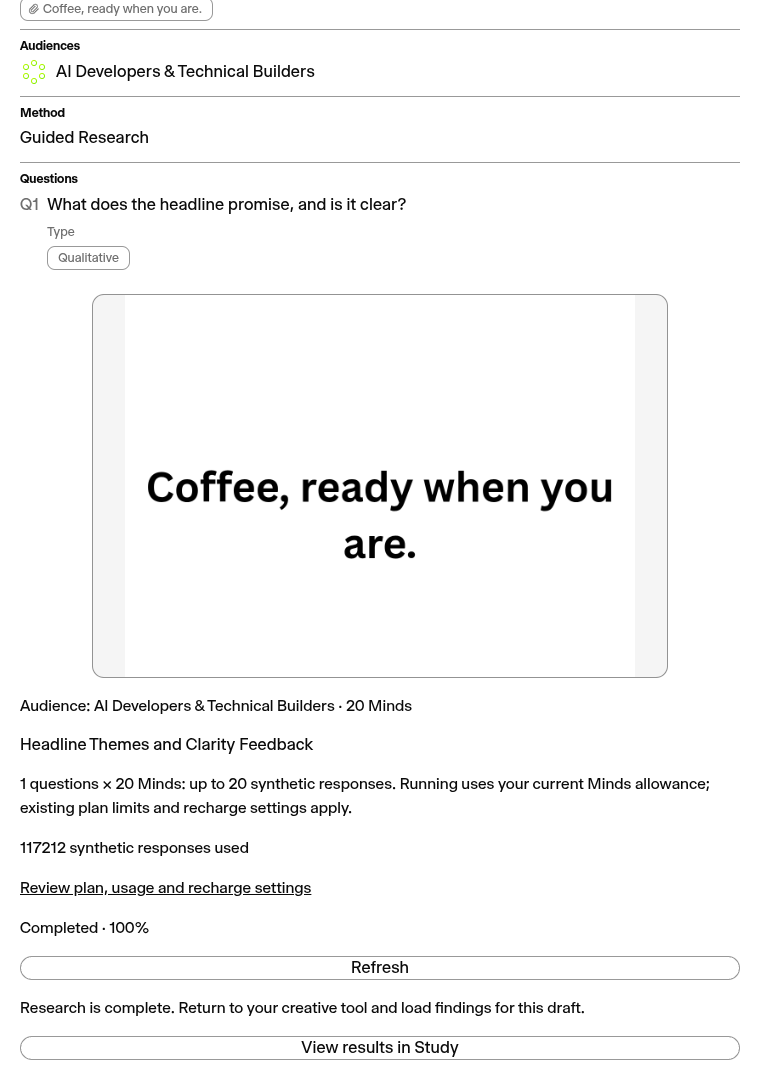
The exact saved plan completed on production after explicit review and confirmation.
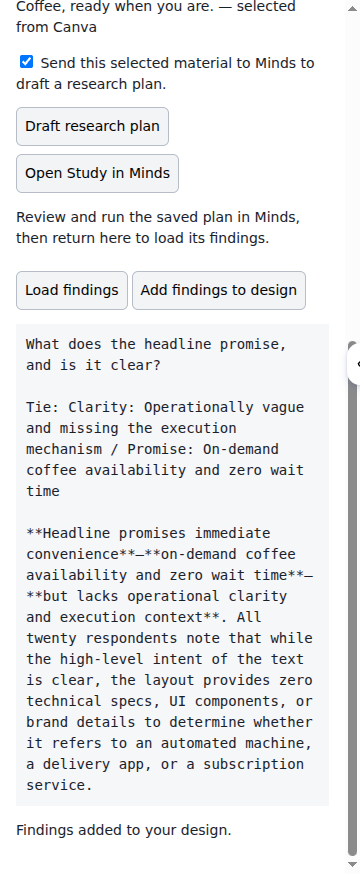
Canva returned the completed run’s findings and confirmed native text insertion into the owned QA design.
Review, confirm and run the saved plan
The saved-draft workflow opens the exact research plan in Minds. The gateway and private Zapier 1.2.0 package return completed findings tied to that draft. Review and execution happen in Minds; public marketplace availability depends on each provider’s registration and approval. Follow these steps:
- Open Study in Minds from the panel, or open the Review URL returned by Zapier. Sign in to the account that created the draft.
- Inspect the imported source, research objective, language, every question and the selected Audience. Verify that the material and population match the decision you want to make.
- Answer any missing-input or clarification questions and save the revised plan. Review the updated questions again; the confirmation applies to that exact revision.
- Review the available response allowance and estimated usage where the method allows an estimate. Methods that prepare additional questions during execution do not present a false fixed total. Resolve missing Audiences, empty populations or account limits before confirming.
- Tick the explicit research confirmation. If the plan uses an advanced method, review and accept its separate opt-in. Select Confirm and run once. Opening the link, importing material and previewing a plan do not execute research.
- Follow this run's queued, running, completed or failed status. Reloading the same draft resumes its confirmed run rather than creating another one. Before confirmation, reloading requires fresh consent. An error preserves the saved draft for inspection and retry.
- Return to the original panel and select Load findings, or use Zapier's Get Completed Research Results search with the saved Study ID and Draft Plan ID. Only completed results from this draft's confirmed run are returned. Incomplete, failed or missing runs do not fall back to an older Study summary.
Keep the original panel open while research runs. Its short-lived connection and draft selection live in memory. Reloading the host panel or reconnecting may require selecting material and drafting again. The saved draft and its confirmed run remain in Minds even when the panel session ends. Return to the Study in Minds to inspect retained results.
Data handling and disconnect
Minds OAuth tokens remain in the gateway. The panel keeps an opaque session capability in memory, without saving credentials in local storage. Pilot sessions expire after one hour; panel reloads and gateway restarts can require reconnection. Disconnect clears selected material and displayed findings and removes gateway access, with an attempted upstream token revocation.
Disconnect does not delete material already imported into a Study. Manage retained research in Minds under the privacy policy. Treat synthetic findings as scoped directional evidence and use human or specialist validation where the decision requires it.
Troubleshooting
| Symptom | What to check |
|---|---|
| Preview is blank or tries localhost | Choose JavaScript bundle in Preview options and save the current package. |
| Studies do not load | Complete consent, return to the same panel, refresh and verify the account. |
| PDF export is cancelled | Select material again; cancellation does not draft research. |
| Source import fails | Export again and confirm that the PDF is readable and permitted to share. |
| Draft saves but the Study opens empty | Verify the matching frontend release and draft link; sign in as the draft creator. |
| Findings are missing | Complete this draft's run in Minds; older Study summaries are not used. |
Release gates and related guides
The complete workflow passed native production acceptance. Continue provider review testing for cancellation, expiration and permissions. Finish translated previews, featured images, reviewer instructions and the walkthrough before public approval. A saved listing is not an approved app; use Canva's review and release process and export documentation.
Compare the Figma Creative Review plugin, Adobe Express add-on, GenStudio extension, private Zapier integration and integration directory.